SQLUNINTERRUPTED

I am just a medium, SQL Server the Goal

Category Archives: SQL Server

SQL Server 2012 RTM’s Today

Today, SQL Server 2012 has been released to Manufacturing. Get ready for some really cool features with SQL 2012, like File Table, ColumnStore Index and a very cool reporting environment PowerView. More information available here.

Dynamically binding a Web Service reference to a Report Server Instance

One of the most important aspect of SQL Server Reporting Services, which makes it stand out amongst competition is its extensibility. If you know .Net programming, then you can almost anything with Reporting services. In this series of posts I would be talking about some things which can be done with .Net and Reporting Services.

Typically speaking, .Net with Reporting Services can be used to create any of the following.

  • .Net Applications (console, UI bases) to automate SSRS tasks.
  • Reporting Services extensions (data, security, delivery etc.) to be used with Reporting Services.
  • Reference libraries to be used directly with the Reports in Reporting Services.
  • .Net code to (web service, Forms application) to consume Reporting Services Reports.

In this post, I would be talking about how to dynamically bind a report server instance using a web service reference.

Reporting Services Web service provides a SOAP over HTTP interface for communication with the Report Server. It provides two endpoints, one for execution and another for management. The most important thing, when creating an application for SSRS is to the add the Reporting services proxy class to the project to the class. This can be done using one of the two ways.

Once you have added the web service reference, using any of the two methods described above, the most important thing is to dynamically bind the web service to a Report Server instance.

To dynamically bind the web service to any Report Server of your choice.

  • First create an instance of the SSRS web service, which was added to the project. For example, if you added the ReportService2010 endpoint, create an object for the same.
  • Set the URL property of this object to the desired Report Server web service URL.
  • Define appropriate security credentials.
ReportingService2010 rs = new ReportingService2010();

rs.Url = "http://localhost/reportserver/ReportService2010.asmx";

rs.Credentials = System.Net.CredentialCache.DefaultCredentials;

To make sure that the URL property is recognized by the compiler, you would need to add the following reference to your code.

using System.Web.Services;

At this point, we can call any method defined in the Web Service and perform the desired operation.

In the next post, I will talk about, creating an Application, which can upload, all the .RDL files present in a folder to a report server.

Adding a Reporting Services Web Reference to .Net application

In an earlier post, I had talked about adding a Reporting Services Proxy class using WSDL.exe. In this post, I would talking about adding a Reporting Services Web Service reference to your .Net Application.

As mentioned in the earlier post, SSRS web service provides interface for communication with the Report Server. In order to use the methods exposed by the Web Service, a reference to the Web Service needs to be added to the Visual Studio project. Depending on the requirement, a reference can be added for any of the reporting services endpoints.

  1. ReportService2005
  2. ReportService2006
  3. ReportExecution2005
  4. ReportService2010 (to be used with SSRS 2008 R2).

In order to add, a web service reference to your project, follow the steps provided below.

In solution explorer, right click on the project node and select “Add Service Reference”

image

On the Add Service Reference Window, click on Advanced. This would open the “Service Reference Setting” window. On the Service Reference Setting window, click on “Add Web Reference”.  On the Add Reference window, in the URL section, provide the complete asmx URL for the Reporting Service endpoint which needs to be used. For example, I would be using the ReportService2010 endpoint. Click on Go.

image

When you click on go, the web service reference would be resolved, and the methods available in the web service would be displayed.

In the Web Service Reference name, you can provide any name of your choice, and click on add reference. This would add the desired endpoint reference to your project.

At this post, we have added a web reference to the project. In a next post, I will talk about how to dynamically bind the reference or the proxy class to a Report Server.

Generating a Reporting Services proxy class using WSDL.exe

Reporting Services Web Service provides a communication interface for Report Server and the client applications. It uses SOAP over HTTP and provides two endpoints (one for report server execution and one for management). The web services provides multiple methods and types which can be used to play around with Reporting Services.

SSRS 2005 and SSRS 2008 expose three different endpoints, which are defined in different WSDL(Web Service Description Language) files.

  • ReportService2005: This is used to manage and work with Report Server which is running in the Native Mode. The WSDL for this endpoint is typically defined as

http://<servername>/<reportserver>/ReportService2005.asmx?wsdl

Where <servername> is the name of the Machine where SSRS is installed and <ReportServer> is the virtual directory name for Reporting Services web service.

  • ReportService2006: This is used to manage and work with Report servers which are running in the SharePoint Integration Mode. The WDSL for this endpoint is.

http://<servername>/<reportserver>/ReportService2006.asmx?wsdl

  • ReportExecution2005: This endpoint is used to control Report Server Execution. for example, to stop a running subscription.The WDSL for this endpoint is.

http://<servername>/<reportserver>/ReportExecution2005.asmx?wsdl

With SSRS 2008 R2, the functionalities of (ReportService2005 and ReportService2006, now depricated) endpoints were integrated to a single WSDL, ReportService2010.

In order to use these WSDL’s in your application, a web service reference should be added. In case, if we do not want to add a web service reference, we can use the Visual Studio utility WSDL.exe to generate a proxy class for these endpoints and add it to the application.

In this post, I will be talking about how to use WSDL.exe to generate a proxy class for Reporting Services. On my Laptop running Windows7, WSDL.exe is located in the following folder.

“C:\Program Files\Microsoft SDKs\Windows\v6.0A\Bin”

Open a Command Prompt window and browse to the above mentioned folder. From the command prompt launch the WSDL.exe. For generating the proxy class, the following Parameters should be enough.

<url or path> A url or path to a WSDL contract, an XSD schema or .discomap document.
/language:<language> The language to use for the generated proxy class.  Choose from ‘CS’,’VB’, ‘JS’, ‘VJS’, ‘CPP’ or provide a fully-qualified name for a class implementing System.CodeDom.Compiler.CodeDomProvider.  The default language is ‘CS’ (CSharp).  Short form is ‘/l:’.
/out:<fileName|directoryPath> The filename or directory path for the generated proxy code. The default filename is derived from the service name. Short form is ‘/o:’.

Let’s say, we need to create the proxy class for the ReportService2005 endpoint, the WSDL.exe command would be

wsdl.exe "http://<ReportServerHostName>/reportserver/ReportService2005.asmx" /l:CS /out:"D:\RS2005.cs"
On successful completion, you should see the following information in the Command Prompt.
Microsoft (R) Web Services Description Language Utility
[Microsoft (R) .NET Framework, Version 2.0.50727.1432]
Copyright (C) Microsoft Corporation. All rights reserved.
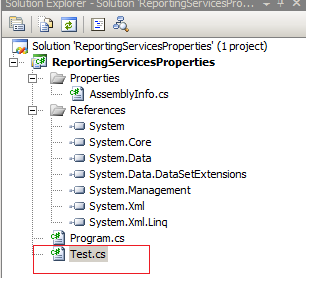
Writing file 'D:\Test.cs’.

Once the File is generated, it can be added to you project as a class file. Using the following steps.
  • In your Visual studio project, open Solution Explorer and Right Click on your Project and click on Add, Existing item.

image

  • In the Add Existing Item dialogue box, locate the RS2005.cs file saved above and add it.

image

  • Once the RS2005.cs, file has been added, we can use the classes/methods just like any C# class.

Details about the methods and functionalities provided by these endpoints can be found at

ReportService2005

ReportService2006

ReportExecution2005

ReportService2010

In the next post, I will talk about how to add a Reporting Services Web Service Reference to your project.

Did you Know- You can perform multiple Insert, update or delete operations as a Singleton operation using the SQL 2008 MERGE operator

The Merge statement in SQL Server 2008 can be used to perform multiple inserts, update and delete operations. Assume for example, in your organization you have a Source Table and a destination table. Everyday at the end of the business, data from the Source table is appended to the Target table. With SQL 2000/SQL 2005, the only way of doing this optimally (assuming that the tables are very large) was to find the Delta of all the changes in the source table and then update the same in the target table. The problem was that you would have to write your own logic or use other SQL Features like SSIS or CDC for finding the delta and then updating the target table.

With the Merge statement you can do the same without much hassles. We can also use the Merge statement in an SSIS package or a job to automate the entire sequence.

Using the MERGE Statement

Syntax for the MERGE statement is simple to understand. First we have the Target table specified by the INTO clause, followed by the Source Table specified with the USING clause. Then we have the Join parameters. The join parameters are important, because this is what will govern which records are to be inserted or deleted or updated in the target table. Then we have the WHEN clause to define the criteria for INSERT, UPDATE and DELETE.

MERGE
[ TOP ( expression ) [ PERCENT ] ]
[ INTO ] target_table [ WITH ( <merge_hint> ) ] [ [ AS ] table_alias]
USING <table_source>
ON <merge_search_condition>
[ WHEN MATCHED [ AND <clause_search_condition> ]
THEN <merge_matched> ]
[ WHEN NOT MATCHED [ BY TARGET ] [ AND <clause_search_condition> ]
THEN <merge_not_matched> ]
[ WHEN NOT MATCHED BY SOURCE [ AND <clause_search_condition> ]
THEN <merge_matched> ]
[ <output_clause> ]
[ OPTION ( <query_hint> [ ,…n ] ) ]
;

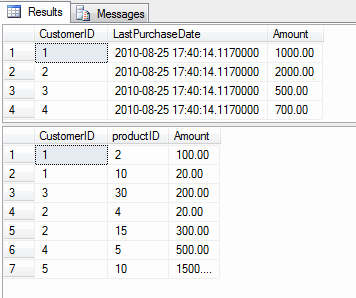
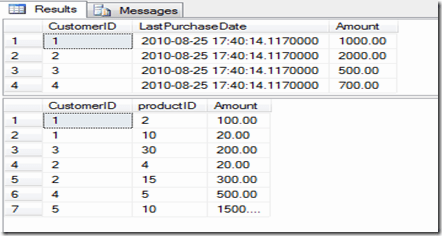
For example, assume that your organization maintains 2 tables, one for daily purchases and another for Reporting which has the last purchase date and the total amount of purchases made by each customer.

Use tempdb
Go

Create table PurchaseReporting
(
CustomerID int,
LastPurchaseDate Datetime2,
Amount Smallmoney,
)
Go

Create Table DailyPurchases
(
CustomerID int,
productID int,
Amount Money
)
Go

Insert into PurchaseReporting values (1, GETDATE(), $1000),
(2,getdate(), $2000),
(3,getdate(), $500),
(4, GETDATE(), $700)

— In the Reporting table we have 4 records for 4 different customer to indicate
— the last purchase date and the total amount of purchased goods.

Insert into DailyPurchases values(1, 2, $100),
(1,10,$20),
(3,30,$200),
(2,4,$20),
(2,15,$300),
(4,5,$500),
(5,10,$1500)

— In the Daily purchases table we have the 7 records to indicate the products purchased
— by different customers.

select * from PurchaseReporting
go
Select * from DailyPurchases
go
image

— Now lets write our Merge statement to update all the changes to the Reporting Table

MERGE PurchaseReporting as SR
Using
(Select CustomerID, getdate(), Sum(Amount) from
    DailyPurchases
    GROUP BY CustomerID) as DS(CustomerID, PurchaseDate, TotalAmount)
On SR.CustomerId = DS.CustomerID
WHEN MATCHED THEN
UPDATE SET SR.LastPurchaseDate = DS.PurchaseDate, SR.Amount = (SR.Amount + DS.TotalAmount)
WHEN NOT MATCHED THEN
INSERT values (DS.CustomerID, DS.PurchaseDate, DS.TotalAmount);

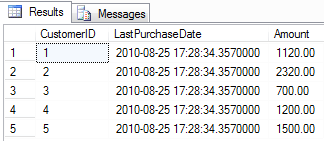
–After execution lets check the values of the Reporting Table Again

select * from PurchaseReporting

image

Notice the changes in the LastPurchaseDate and the Amount columns for the customer (1,2,3,4) and a new record with CustomerID 5 being inserted into the table.