SQLUNINTERRUPTED

I am just a medium, SQL Server the Goal

Category Archives: SQL Server

What’s new SQL Server 2012–Server Level Auditing For all Editions

During my customer visits and over other offline interactions I have had with customer, one thing which they have always complained about is the fact that Server Level auditing in not available for other editions of SQL Server, except for the Enterprise, Developer and Evaluation Edition.

Now there is good news. With SQL Server 2012, Server level Auditing is now available for all editions of SQL Server. Database level auditing still remains limited to Enterprise, Developer and Evaluation Editions.

In addition to extending the Server level auditing to all editions, there are have been certain enhancements to the Auditing options.

  1. The logging is more resilient to failures. For example, if the target log is on a network share, and if the network connection fails, SQL Server audit would restart when the network connectivity is restored.
  2. A new Fail_Operations option has been added to On_Failure clause. With this new operations the operations which invoke the Audit, would be failed if the Audit cannot be written to be log. As mentioned above, if the write failure condition is resolved, the operations would continue to work without problems.
  3. A new MAX_Files options has been added to the Audits. Earlier either the no of log written were unlimited (limited by the max size option or the space on the destination directory) or the number of logs were regulated by the Max_Rollover_Files option. Now, we can define a limit on the maximum number of files to be created.
  4. A new option Predicate Expression has been added to the Create Server Audit command. These predicate expressions are used to determine if the Audit needs to be invoked or not. The Predicate Expressions can be specified in a where clause in the Create Server Audit command.

Generating a Tree view of Report Server Items using .Net

A couple of weeks back, while taking a SSRS workshop for a customer, I was presented with an interesting problem. Customer wanted a functionality wherein, Report Users would be allowed to view the list of the reports existing on the Report Server using an application (and not Report Manager), and they could only execute the selected reports using a button on the .Net/Web application and can only receive he rendered report using Email delivery.

One important aspect which really helped in this scenario was that the reports were not dependent on User parameters. All the reports had to be executed with Default parameters.

We tried to break down the requirements into steps

  1. Forms based/Web Application to list all the available reports on the Report Server. Obviously, only the reports on which the user has access would be visible.
  2. Provide the User with a Text Box for entering their email address.
  3. Provide a button, upon clicking which the reports would be executed and send to the User as an email.

While creating the list of all the available reports was pretty simple since ReportService2010 has ListChildren method which can be used. Executing the report and emailing it to the user is where the major challenge is.

We pondered over multiple ways of doing it, for example

  • We could create a run time subscription for the Report and send the results to the user using Email Delivery. Once the email is sent, the subscription can be deleted.
  • We could execute the reports with the required parameters (parameters are default) and then use the Email delivery method to send the reports to the users.
  • We could create a on Demand subscription for the report and execute it when the user clicks on the button.

In the customer environment, we ended up implementing the second option, since the other two options had issues with concurrency. If multiple users were accessing the Web Application, we would need to create multiple subscription run time, which was not a very scalable approach. If we used a pre-created subscription, we would not be able to run it for multiple users.

In this post, I will be talking mainly about how to generate a tree view of the Report Server Items. In the next parts I will be talking about the other options which we tried to implement at the customer end.

In order to generate a Tree View of the Report Server Catalog, the first thing I did was bind the Report Server to a Report Server endpoint(ReportService2010 in this case). I created a class ListRSItems, which implements three functions.

  • Constructor : To initialize the ReportService2010 Proxy class and dynamically bind the Report Server instance to it.
  • ReturnRSChildList(string path) : To return a list of Report Server Catalog Items, for a given report server path. This function only returns the immediate children of the Report Server item, specified as input to the function.
  • GetReportServerName(): This function is used to return the name of the Report Server instance. If it’s a default instance of Reporting Services, it would return the Machine name, otherwise it would return the report server name in the format <machinename/instancename>.

Included below is the code for the Class.

   1: public class ListRSITems

   2:     {

   3:         private ReportingService2010 rs;

   4:  

   5:         public ListRSITems()

   6:         {

   7:             try

   8:             {

   9:                 // Connect to Reporting Services

  10:                 rs = new ReportingService2010();

  11:                 rs.Credentials = System.Net.CredentialCache.DefaultCredentials;

  12:                 rs.Url = "http://localhost/reportserver/ReportService2010.asmx";

  13:             }

  14:             catch (System.Exception ex)

  15:             {

  16:                 Console.WriteLine(ex.Message);

  17:             }

  18:         }

  19:         public CatalogItem[] ReturnRSChildList(string path)

  20:         {

  21:              return this.rs.ListChildren(path, false);                    

  22:         }

  23:         public string GetReportServerName()

  24:         {

  25:             string RSName = "";

  26:             //RSName = this.rs.GetReportServerConfigInfo(false);

  27:             System.Xml.XmlDocument doc = new System.Xml.XmlDocument();

  28:             doc.LoadXml(this.rs.GetReportServerConfigInfo(false));

  29:  

  30:             RSName = doc.SelectSingleNode("ServerConfigInfo/Server/MachineName").InnerText;

  31:             string temp = doc.SelectSingleNode("ServerConfigInfo/Server/InstanceName").InnerText;

  32:             if ( temp == "MSSQLSERVER")

  33:                 return RSName;

  34:             else

  35:                 return RSName + "/" + temp;            

  36:         }

  37:     }

Next, we need to Add a TreeView control to the windows Forms (I am using a Forms Application, but this can be used in a Web Application also) and bind the Report Server Items as Tree Nodes. For this I added two more functions to the Form class.

  • GenerateTreeView() : This is the parent function, where we create the Root Node for the Tree. The Root node name is derived from the function ListRSItems.GetReportServerName(). After the root node has been initialized, we call the ListRSItems.ReturnRSChildList, to return all first level (Child Items for the root level). For all the child items returned we call a function AddTreeNodes(), to add the specified item and all its child items to the TreeView.
  • AddTreeNodes(TreeNode parent, CatalogItem c) : In this function we add all child nodes and subsequent child nodes to the TreeView. This function calls itself recursively to find all the sub child items and add them to the TreeNode.

Code Included below:

   1: public partial class Form1 : Form

   2:     {

   3:         public Form1()

   4:         {

   5:             LRT = new ListRSITems();

   6:             InitializeComponent();

   7:             GenerateTreeView();

   8:         }

   9:  

  10:         public void GenerateTreeView()

  11:         {

  12:             string path = "/";

  13:             CatalogItem[] items = this.LRT.ReturnRSChildList(path);

  14:  

  15:             TreeNode root = new TreeNode();

  16:             root.Text = LRT.GetReportServerName();

  17:             root.ToolTipText = "Report Server Name";

  18:             root.ImageIndex = root.SelectedImageIndex = 0;

  19:             TreeView1.Nodes.Add(root);

  20:             TreeView1.BeginUpdate();

  21:             foreach(CatalogItem c in items)

  22:             {

  23:                 AddTreeNodes(root, c);

  24:             }

  25:             TreeView1.EndUpdate();

  26:         }

  27:         public void AddTreeNodes(TreeNode parent, CatalogItem c)

  28:         {

  29:             TreeNode newnode = new TreeNode();

  30:             if (c.TypeName == "Folder")

  31:             {

  32:                 CatalogItem[] items = this.LRT.ReturnRSChildList(c.Path);

  33:                 newnode.Text = c.Name;

  34:                 newnode.ToolTipText = "Report Server Folder";

  35:                 newnode.ImageIndex = newnode.SelectedImageIndex = 0;

  36:                 parent.Nodes.Add(newnode);

  37:                 foreach (CatalogItem x in items)

  38:                 {

  39:                     AddTreeNodes(newnode, x);

  40:                 }

  41:             }

  42:             if (c.TypeName == "Report")

  43:             {

  44:                 newnode.Text = c.Name;

  45:                 newnode.ToolTipText = "Report Server Report";

  46:                 newnode.ImageIndex = newnode.SelectedImageIndex = 2;

  47:                 parent.Nodes.Add(newnode);

  48:             }

  49:             if (c.TypeName == "DataSource")

  50:             {

  51:                 newnode.Text = c.Name;

  52:                 newnode.ToolTipText = "DataSource";

  53:                 newnode.ImageIndex = newnode.SelectedImageIndex = 1;

  54:                 parent.Nodes.Add(newnode);

  55:             }

  56:             if (c.TypeName == "LinkedReport")

  57:             {

  58:                 newnode.Text = c.Name;

  59:                 newnode.ToolTipText = "Linked Report";

  60:                 newnode.ImageIndex = newnode.SelectedImageIndex = 4;

  61:                 parent.Nodes.Add(newnode);

  62:             }

  63:             if (c.TypeName == "Model")

  64:             {

  65:                 newnode.Text = c.Name;

  66:                 newnode.ToolTipText = "Report Model";

  67:                 newnode.ImageIndex = newnode.SelectedImageIndex = 3;

  68:                 parent.Nodes.Add(newnode);

  69:             }

  70:         }

  71:     }

The Code generates the following TreeView Structure for my Report Server instance.

image

In another post, I will talk about how to programmatically, execute a Report and send the rendered report (in any format) as an email to user.

SQL Server 2012 — ColumnStore Index

In the past, if you have been plagued with Slow performance of your data warehouse queries, there is some good news for you. With SQL Server 2012, we can now create ColumnStore Indexes, which would improve your query performance significantly. ColumnStore indexes are targeted for queries which use a Aggregations over columns or a set of columns.

Traditional SQL Server Approach

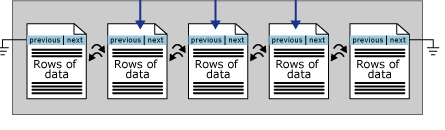
SQL Server has traditionally been using a row store based storage. Under this approach the complete data row is stored on a Data Page, and is read or written to as a complete unit. As shown below, the Row is Stored on the page

image

In the traditional approach, lets say if we had a table, with the given definition

create table t1
(
    a int,
    b int,
    c datetime,
    d varchar(300)
)

Assume we are running the following query against the table and that the table has about 1 billion records on approximately 40 million pages.

select SUM(a),AVG(b), MAX(c) from t1

In this case, we just need to do a sum of the values of column a. Given the row store approach, we would need to read the entire row (all the columns) to execute this query, which means we would need to read all the 40 million pages for this query and then perform the aggregation operation.

How ColumnStore Index Helps

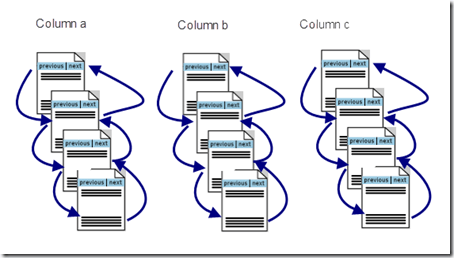
When we create a column store index on the table, it changes the way how data is organized. Data for each column which is included in the ColumnStore index is arranged separately. For example if we created a ColumnStore index on the above table on the columns (a, b and c). The columns would be organized independent of each other on different set of pages. as shown below.
image

Additionally, ColumnStore uses page compression by default. Most of the column values are similar if not same, and hence can greatly benefit from compression.

Now, with this arrangement, if we run the above mentioned query, we would only need to read pages for Column a, which in the above case would be only about ~300K(assuming 40% compression) of pages to read and sum the values of a, then another ~300K(assuming 40% compression) pages for the average of b and finally ~500(assuming 50% compression) pages to calculate the Max of c.

As mentioned, this type of organization helps queries where we are returning only some of the columns from a table. For queries where we need to return all the columns in a row, Row-Store approach works better. Typically, OLTP workloads benefit from row storage organization of data, while warehouse queries would benefit from ColumnStore index.

Restrictions on ColumnStore Indexes

The MSDN Article describes the restrictions or limitations to creating ColumnStore indexes. One thing to keep in mind, that when u create a ColumnStore index on a Table, you cannot Update the table. In Order to update the table, the quickest way would be to drop the column store index and then perform your insert, update, deletes. Once you are done with the DML’s, the ColumnStore Index can be recreated.

Example

I create two tables with the same schema but one with only a ColumnStore Index and another with a Clustered Index and a non clustered index. Both the table have about 7.7 million records.

This tables have been created on the AdventureWorks2012 sample database, which can be downloaded from here.

TableWithoutColumnStoreIndex

   1: use AdventureWorks2012

   2: go

   3:  

   4:  

   5: select * into dbo.TableWithoutColumnStoreIndex from Sales.SalesOrderDetail

   6: go

   7:  

   8: declare @count int =0

   9: while @count < 6

  10: begin

  11:     insert into dbo.TableWithoutColumnStoreIndex 

  12:     ([SalesOrderID],[CarrierTrackingNumber],[OrderQty],[ProductID],[SpecialOfferID],[UnitPrice],

  13:     [UnitPriceDiscount],[LineTotal],rowguid, [ModifiedDate])

  14:         select [SalesOrderID],[CarrierTrackingNumber],[OrderQty],[ProductID],[SpecialOfferID],[UnitPrice],

  15:     [UnitPriceDiscount],[LineTotal],NEWID(), [ModifiedDate] from dbo.TableWithoutColumnStoreIndex

  16:  

  17:     set @count=@count+1

  18: end

  19:  

  20:  

  21: /****** Object:  Index [IDX_Clustered]    Script Date: 2/1/2012 3:01:42 AM ******/

  22: CREATE CLUSTERED INDEX [IDX_Clustered] ON [dbo].[TableWithoutColumnStoreIndex]

  23: (

  24:     [SalesOrderDetailID] ASC

  25: )WITH (PAD_INDEX = OFF, STATISTICS_NORECOMPUTE = OFF, SORT_IN_TEMPDB = OFF, DROP_EXISTING = OFF, ONLINE = OFF, ALLOW_ROW_LOCKS = ON, ALLOW_PAGE_LOCKS = ON) ON [PRIMARY]

  26: GO

  27:  

  28: /****** Object:  Index [IDX_NonClustered]    Script Date: 2/1/2012 3:01:58 AM ******/

  29: CREATE NONCLUSTERED INDEX [IDX_NonClustered] ON [dbo].[TableWithoutColumnStoreIndex]

  30: (

  31:     [SalesOrderID] ASC,

  32:     [ProductID] ASC

  33: )

  34: INCLUDE (     [ModifiedDate]) WITH (PAD_INDEX = OFF, STATISTICS_NORECOMPUTE = OFF, SORT_IN_TEMPDB = OFF, DROP_EXISTING = OFF, ONLINE = OFF, ALLOW_ROW_LOCKS = ON, ALLOW_PAGE_LOCKS = ON) ON [PRIMARY]

  35: GO

  36:  

  37:  

TableWithColumnStoreIndex

   1: use AdventureWorks2012

   2: go

   3:  

   4: select * into dbo.TableWithColumnStoreIndex from Sales.SalesOrderDetail where 1=2

   5: go

   6:  

   7: Alter Table dbo.TableWithColumnStoreIndex Alter Column LineTotal numeric(18,6)

   8: go

   9:  

  10: insert into dbo.TableWithColumnStoreIndex 

  11: ([SalesOrderID],[CarrierTrackingNumber],[OrderQty],[ProductID],[SpecialOfferID],[UnitPrice],

  12: [UnitPriceDiscount],[LineTotal],rowguid, [ModifiedDate])

  13:     select [SalesOrderID],[CarrierTrackingNumber],[OrderQty],[ProductID],[SpecialOfferID],[UnitPrice],

  14: [UnitPriceDiscount],[LineTotal],rowguid, [ModifiedDate] from Sales.SalesOrderDetail

  15: go

  16:  

  17:  

  18: declare @count int =0

  19: while @count < 6

  20: begin

  21:     insert into dbo.TableWithColumnStoreIndex 

  22:     ([SalesOrderID],[CarrierTrackingNumber],[OrderQty],[ProductID],[SpecialOfferID],[UnitPrice],

  23:     [UnitPriceDiscount],[LineTotal],rowguid, [ModifiedDate])

  24:         select [SalesOrderID],[CarrierTrackingNumber],[OrderQty],[ProductID],[SpecialOfferID],[UnitPrice],

  25:     [UnitPriceDiscount],[LineTotal],NEWID(), [ModifiedDate] from dbo.TableWithColumnStoreIndex

  26:     set @count=@count+1

  27: end

  28:  

  29:  

  30: -- Create a Column Store Index on the Table

  31: Create NonClustered ColumnStore Index IDX_ColumnStore on dbo.TableWithColumnStoreIndex

  32: (    [SalesOrderID],

  33:     [SalesOrderDetailID],

  34:     [CarrierTrackingNumber],

  35:     [OrderQty],

  36:     [ProductID],

  37:     [SpecialOfferID],

  38:     [UnitPrice],

  39:     [UnitPriceDiscount],

  40:     [LineTotal],

  41:     [ModifiedDate]

  42: )

I executed the below mentioned query on the two table to compare the performance. In the Query below, I am just substituting the Name of the tables([TableWithColumnStoreIndex], or  [TableWithoutColumnStoreIndex]) While executing.

   1: select

   2: ( ISNull(P.FirstName,'') + ' ' + ISNull(P.MiddleName,'') + ' ' + IsNull(P.LastName,'')) As CustomerName,

   3: SOH.OrderDate, SOH.DueDate, SOH.ShipDate,SOH.TotalDue,

   4: sum(TWC.OrderQty) As TotalOrderQuantity ,avg(TWC.UnitPrice) As AvgUnitPrice,

   5: Avg(TWC.UnitPriceDiscount) as AvgDiscountOnUnitPrice

   6: from 

   7: [dbo].[TableWithoutColumnStoreIndex] TWC 

   8: join Sales.SalesOrderHeader SOH on TWC.SalesOrderID = SOH.SalesOrderID

   9: join Sales.Customer C on SOH.CustomerID = C.CustomerID

  10: join Person.Person P on P.BusinessEntityID = C.PersonID

  11: where TWC.UnitPriceDiscount <> 0 and TWC.OrderQty > 500

  12: group by 

  13: ( ISNull(P.FirstName,'') + ' ' + ISNull(P.MiddleName,'') + ' ' + IsNull(P.LastName,'')),

  14: SOH.OrderDate, SOH.DueDate, SOH.ShipDate,SOH.TotalDue

Query Performance Against the Table without ColumnStore Index

When executed against the Table without ColumnStore index, the query table takes about 1248 millisecond.

image

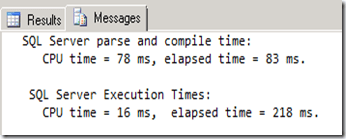
Query Performance Against the Table with ColumnStore Index

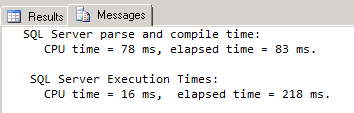
When executed against the Table with ColumnStore Index, the query executes in about 218 milliseconds. A 5x performance improvement.
image

Finding disk free space and other file level information for SQL Files

Recently a friend of mine, Rahul Soni in his blog wrote a .Net code to retrieve the file information and other drive information for all SQL Server files.

While discussing this, he wanted to know if this can be done using T-SQL or not, and so the blog article follows.

Most of the file level information can be retrieved from the catalog View Sys.Master_files. To run queries against this view and see the records, the user would need the following permissions

  • CREATE DATABASE
  • ALTER ANY DATABASE
  • VIEW ANY DEFINITION

The catalog view returns information about all the files for all the databases present in SQL Server. Details about the view can be found in SQL Server Books Online.

Additionally, to find the free space information on the Drives, I used to xp_fixeddrives extended stored procedure.

Included below is the code for the stored procedure which I wrote to get this information

   1: USE [master]

   2: GO

   3: /****** Object:  Stored Procedure [dbo].[usp_getFileinformation]    Script Date: 03/13/2012 20:13:15 ******/

   4: SET ANSI_NULLS ON

   5: GO

   6: SET QUOTED_IDENTIFIER ON

   7: GO

   8: ALTER procedure [dbo].[usp_getFileinformation]

   9: As

  10: create table #fixeddrives

  11: (

  12: Drive varchar(2), 

  13: FreeSpaceMB int

  14: )

  15:  

  16: insert into #fixeddrives(Drive,FreeSpaceMB) exec xp_fixeddrives

  17: select  

  18: DB_NAME(database_id) As DatabaseName, type_desc as FileType, 

  19: name as [FileName], physical_name as FileLocation, 

  20: (size*8)  as CurrentSizeInKB, 

  21: case    max_size

  22:      when -1 then null

  23:      else max_size

  24: end As MaxFileSize,

  25: Case  

  26:     when is_percent_growth = 1 then CAST(growth AS varchar(5)) + '%'

  27:     else CAST(growth AS varchar(5)) + ' MB'

  28: End FileGrowth,

  29: SUBSTRING(physical_name, 1,1) As Drive

  30: into #temp from master.sys.master_files

  31:  

  32: select t.DatabaseName, t.FileType, t.FileName, t.FileLocation, t.CurrentSizeInKB, t.MaxFileSize,t.FileGrowth, 

  33: fd.FreeSpaceMB As FreeSpaceOnDrive_MB

  34: from  #temp t

  35: inner join #fixeddrives fd on fd.Drive = t.Drive

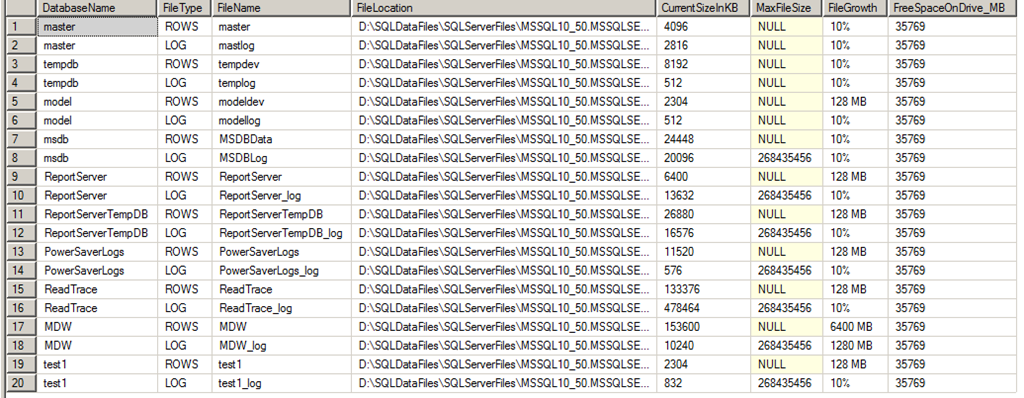
This stored procedure returns the following information.

image

Uploading multiple Reports to the Report Server using .Net

Continuing the series on Programming for Reporting Services, we will see how to upload multiple reports (*.rdl) files present in a folder, to the Report Server. While this can be done using Report Manager (uploading the reports one-by-one), this obviously is not an efficient way of doing it. In this post, we will see how we can automate the task using .Net.

The code, here assumes that all the *.rdl present in a file system folder would be uploaded to the same Report Server folder. if you require to add reports to multiple folder, then I suggest you create a folder hierarchy, to replicate your Report Server folder hierarchy.

For the purpose of this post, I have created the below mentioned folder hierarchy. Each folder contains some report, which needs to be uploaded to the report server. The reports would be uploaded to a similar folder hierarchy on the Report Server. If the folders do not exists on the Report Server, it would be first created and then the report uploaded.

image

Each of this folders contain some RDL file, which needs to be uploaded to the Report Server. I have created a Console Application for this purpose.

The First step would be create a method to iterate through the folder structure and read the RDL files.  Then we would need a method read the RDL files and get the report definition. This can be done using one of the IO stream classes in .Net. In my console Application, I have added a C# class named ReadReportDefinition.cs. Code included below.

   1: public static class ReadReportDefinition

   2:     {

   3:         public static void IterateFolderHierarchy(string folderpath)

   4:         {

   5:             ConfigureReports cr = new ConfigureReports();

   6:             string connectionString = "data source=." + ";Initial Catalog=PowerSaverLogs";

   7:             cr.UploadDataSource("PowerManagementDataSource", "SQL", connectionString);

   8:             try

   9:             {

  10:                 DirectoryInfo dir = new DirectoryInfo(folderpath);

  11:                 try

  12:                     { 

  13:                         DirectoryInfo[] subdirectories = 

  14:                                     dir.GetDirectories("*", SearchOption.TopDirectoryOnly);

  15:                         byte[] ReportDefinition = null;

  16:                         foreach (DirectoryInfo Dir in subdirectories)

  17:                         {

  18:                             cr.CheckReportServerFolder(Dir.Name);

  19:                             FileInfo[] ReportFiles = Dir.GetFiles("*.rdl");

  20:                             foreach (FileInfo file in ReportFiles)

  21:                             {

  22:                                 FileStream stream = File.OpenRead(file.FullName);

  23:                                 ReportDefinition = new Byte[stream.Length];

  24:                                 stream.Read(ReportDefinition, 0, (int)stream.Length);

  25:                                 stream.Close();

  26:                                 cr.UploadReports(Dir.Name,ReportDefinition, file.Name.Substring(0, (file.Name.Length - 4)));

  27:                                 ReportDefinition = null;

  28:                             }

  29:  

  30:                         }

  31:                 }

  32:                 catch(System.IO.IOException E)

  33:                     {

  34:                         Console.WriteLine("System Exception Message" + E.Message);

  35:                     }

  36:                 

  37:             }

  38:             catch(System.IO.DirectoryNotFoundException e)

  39:             {

  40:                 Console.WriteLine("System Exception Message" + e.Message);

  41:             }

.csharpcode, .csharpcode pre
{
font-size: small;
color: black;
font-family: consolas, “Courier New”, courier, monospace;
background-color: #ffffff;
/*white-space: pre;*/
}
.csharpcode pre { margin: 0em; }
.csharpcode .rem { color: #008000; }
.csharpcode .kwrd { color: #0000ff; }
.csharpcode .str { color: #006080; }
.csharpcode .op { color: #0000c0; }
.csharpcode .preproc { color: #cc6633; }
.csharpcode .asp { background-color: #ffff00; }
.csharpcode .html { color: #800000; }
.csharpcode .attr { color: #ff0000; }
.csharpcode .alt
{
background-color: #f4f4f4;
width: 100%;
margin: 0em;
}
.csharpcode .lnum { color: #606060; }

The next step, would be to add a reference to one of the Reporting Services endpoints, and then dynamically binding it to the Report Server, where the reports needs to be uploaded. For information about, how to add a reporting service endpoint and dynamically bind it to a Report Server, click here.

The next step, is to create a class or methods to call the ReportingService2010 endpoint (this is what I am using in my code) and perform the required actions. In this case, I created a new Class “Configure Reports” to perform the desired operations.

This class has 3 methods, and the constructor. In the constructor, I dynamically bind the endpoint to my Report Server instance.

  • CheckReportServerFolder: Checks if a particular folder exists on the report server on not. This uses the ReportingService2010 Listchildren method.
  • UploadReports : Uploads reports to the Report Server. This function calls the ReportingService2010 CreateReport method.
  • UploadDataSource: To upload the datasource to the report server. Uses the ReportingService2010 CreateDataSource function.
   1: using System;
   3: using System.Linq;

   2: using System.Collections.Generic;

   4: using System.Text;

   5: using System.Web.Services;

   6:  

   7: namespace UploadMultipleReports

   8: {

   9:     public class ConfigureReports

  10:     {

  11:         private const string Root = "/";

  12:         private ReportingService2010 rs;

  13:  

  14:         public ConfigureReports()

  15:         {

  16:             try

  17:             {

  18:                 // Connect to Reporting Services

  19:                 rs = new ReportingService2010();

  20:                 rs.Credentials = System.Net.CredentialCache.DefaultCredentials;

  21:                 rs.Url = "http://localhost/reportserver/ReportService2010.asmx";

  22:             }

  23:             catch (System.Exception ex)

  24:             {

  25:                 Console.WriteLine(ex.Message);

  26:             }

  27:  

  28:         }

  29:         public void CheckReportServerFolder(string foldername)

  30:         {

  31:             int count = 0;

  32:             int datasourcecount =0;

  33:             try

  34:             {

  35:                 CatalogItem[] list = rs.ListChildren("/", false);

  36:                 foreach (CatalogItem c in list)

  37:                 {

  38:                     if ((c.TypeName == "Folder") & (c.Name == foldername))

  39:                         count += 1;

  40:                     if((c.TypeName=="Data Source")& (c.Name == "PowerManagementDataSource"))

  41:                         datasourcecount+=1;

  42:                 }

  43:                 if (count == 0)

  44:                     rs.CreateFolder(foldername, "/", null);

  45:             }

  46:             catch (Exception e)

  47:             {

  48:                 Console.WriteLine(e.Message);

  49:             }

  50:         }

  51:         public void UploadReports(string ParentFolder,byte[] definition,string ReportName)

  52:         {

  53:             try

  54:             {

  55:                 string parent = "/" + ParentFolder;

  56:                 /// Create the Reports

  57:                 ///

  58:                 Warning[] warnings = null;

  59:                 rs.CreateCatalogItem("Report", ReportName, parent, true, definition, null, out warnings);

  60:                 if (warnings != null)

  61:                 {

  62:                     Console.WriteLine("Report {0} could not be uploaded to folder {1}", ReportName, ParentFolder);

  63:                     foreach(Warning war in warnings)                    

  64:                         Console.WriteLine("Warning Generated {0}", war.Message);

  65:                 }

  66:             }

  67:             catch (Exception e)

  68:             {

  69:                 Console.WriteLine(e.Message);

  70:             }

  71:  

  72:         }

  73:         public void UploadDataSource(string name, string extension, string connstring)

  74:         {

  75:             const string Parentpath = "/";

  76:             DataSourceDefinition definition = new DataSourceDefinition();

  77:             definition.CredentialRetrieval = CredentialRetrievalEnum.Integrated;

  78:             definition.ConnectString = connstring;

  79:             definition.Extension = extension;

  80:             definition.Enabled = true;

  81:             definition.EnabledSpecified = true;

  82:             definition.ImpersonateUserSpecified = true;

  83:             // Use the default prompt string.

  84:             definition.Prompt = null;

  85:             definition.WindowsCredentials = false;

  86:             try

  87:             {

  88:                 rs.CreateDataSource(name, Parentpath, false, definition, null);

  89:             }

  90:             catch (Exception e)

  91:             {

  92:                 Console.WriteLine(e.Message);

  93:             }

  94:         }

  95:     }

  96: }

Once the classes are in place, all we need to do is call them in the application main function.

   1: class Program

   2: {

   3:     static void Main(string[] args)

   4:     {

   5:         Console.WriteLine("Enter Report File Root Directory");

   6:         string folderpath = Console.ReadLine();

   7:         ReadReportDefinition.IterateFolderHierarchy(folderpath);

   8:         Console.ReadLine();

   9:     }

  10: }