SQLUNINTERRUPTED

I am just a medium, SQL Server the Goal

SQL Server Memory–The Evolution

Previous Posts in this series

SQL Server Memory– Underground

In my Previous post, I had talked briefly about the windows Memory Management and how SQL calculates its Buffer Pool and MTL. In this post, I would be talking mainly about the workings of the SQL Buffer Pool and the MTL, and how to figure out the memory usage by SQL and its components. This post would be specific to SQL 2000 unless specified otherwise.

SQL Buffer Pool

SQL Memory Management is Dynamic in nature, meaning SQL can allocate or de-allocate memory in the Buffer Pool as per requirement. In order for the SQL Server to effectively manage its memory allocations SQL Server 7, introduced a layer of Memory Manager that manage various types of memory requests in the SQL Buffer pool.

The important ones are

  1. General – This memory manager handles general allocation (not handled by other managers). Includes things like locks etc..
  2. Query Plan – As the name implies, this is mainly used for query plans.
  3. Optimization – Handles memory requests during optimization.
  4. Utility – Manages Memory allocations for different utilities, like tracing, log shipping etc.
  5. Connection – Manages memory allocations for Connections. This includes memory for the input and output buffers.

The idea behind using these managers is very simple. Consider an Analogy. In a company with 1000 employees, If there is only one manager, management becomes really difficult. One the second hand if we have 10 managers managing 100 employees each, it would be easier. With multiple managers it becomes easier to manage and report the usage.

The amount of memory being consumed (out of the 2 GB user mode VAS), can be easily tracked using either of the following options.

  • DBCC MEMORYSTATUS
  • Windows Performance Monitor Counters

DBCC MEMORYSTAUS

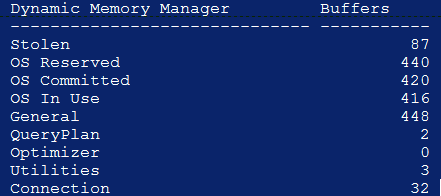
The KB article describes the output of the DBCC MEMORYSTATUS command for SQL 2000 in great detail. The following section of the DBCC MEMORYSTATUS output can be used to track the usage per Memory Manager.

image

The OS reserved/OS committed/OS in Use sections are for all allocations which have been made in the SQL VAS  by the memory managers (more than 8 KB allocations) and also for all external allocations coming from external components loaded in the SQL Space. In short, this can be used to track all the allocations made in the Mem-To-Leave area.

Apart from the output for the Memory Managers, another important section in the output is the first section of the output, which can be used to see how are the Database Pages allocated in the BPool.

Windows Performance Monitor Counters

SQL Server exposes two Performance Monitor Objects for monitoring SQL Server Memory. These performance Monitor counters are also applicable to next releases of SQL Server (SQL 2005/2008/2008 R2) with slight differences, which I would be pointing out in the next posts.

  • Memory Manager: Provides information about SQL Server memory as whole.
  • Buffer Manager: Provides information about the SQL Buffer Pool

Memory Manager

The important counters under this object are

  1. Connection Memory: Indicates the amount of memory being consumed under the Connection Memory Manager.
  2. Granted Workspace Memory: Memory allocated/reserved for operations during Query Execution. All memory for sorting, hashing come from these.
  3. Memory Grants Pending: Number of memory requests which have not been completed. A non-zero value for a sustained period would indicate a memory pressure in SQL Server.
  4. Optimizer Memory: Memory being consumed under the Optimizer Memory Manager.
  5. Total Server Memory: Total memory consumed my SQL. This included both allocation in BPool and Allocations in Mem-To-Leave. This value should be equal to the sum of the “OS in Use” under dynamic memory manager, and “Committed” under Buffer Count sections of the Memory Status values. Remember these values in Memory Status output are in number of 8 KB pages.

Buffer Manager

  1. Checkpoint Pages/Sec: Number of pages being flushed by the checkpoint thread.
  2. Database Pages: Number of BPool buffers being used for Database pages.
  3. Free Pages: Number of pages free in the buffer pool. This values should always be greater than 0.
  4. Lazy Writes/Sec: Number of lazy write operations per sec.
  5. Stolen Pages/Sec: Committed pages which are not being as a database page are termed as stolen.
  6. Total Pages: Number of pages currently being used in the Buffer Pool.

Memory discussions for SQL Server is not complete without the mention of two very important operations, Checkpoint and Lazy Writer.

Checkpoint: Checkpoint is the process wherein Dirty Buffer (database pages which have been modified by a DML operation) back to the disk.

Lazy Writer: The sole purpose of Lazy Writer is to maintain some free buffers in the SQL Server Buffer Pool. Lazy writer runs periodically and check which buffers can be flushed and returned to the free pool.

SQL Server Memory– Underground

With SQL Server 2012 there has been considerable changes in the way Memory is allocated and utilized. In Part 1 of the SQL Server Memory series I would talk about memory configurations on windows Servers and then discuss how memory works for SQL Server 2000.

All windows Application (32/64 bit) are designed to work with the Virtual Memory concept in Windows. Each process is provided with a fixed size virtual memory, regardless of the amount of RAM on the machine. The VM limits (a.k.a the maximum addressable memory limit) for an application is as follows

  1. 32 bit Applications: 4 GB
  2. 64 Bit Applications: 16 TB

Each application running on Windows has to comply with the Virtual memory Limits as imposed by the architecture.

This Virtual Memory(hence forth referred as Virtual Address space) is divided into 2 regions “User Mode” and “Kernel Mode”. An Application works with only the user mode. In other words they can only play around with the User Mode VAS, and do not have any control on the Kernel Mode.

image

On a 32 bit(x86) environment the User Mode is 2GB (8 TB in 64 bit environment) and can be increased to 3GB (reducing the kernel mode to 1 GB) using the /3GB switch in the Boot.ini file. With windows 2003 servers a new boot.ini switch was available which allows the user mode to be configured to a value between 2 GB and 3 GB, depending on the user requirements.

On a 64 bit environment, the VAS is practically limitless (8 TB) and hence the application can potentially access all the memory on the Machine.

Physical Memory allocations and usage is directly controlled by some components which runs in the Kernel Mode (Windows Kernel Code). A User Application has no control on the Physical RAM. In order for the Application to access Physical Memory, it provides the windows Memory Management Unit(MMU) with a Virtual address (4 Byte – 32 bit address in the VAS) which is then translated (address translation) by the MMU into a physical address. Windows then reads the content at the physical address and returns it back to the application.

An Application running with default configurations (without AWE in case of 32 bit applications) cannot access more memory than allowed by the size of the User Mode VAS.

SQL Server like all other windows application follows this Virtual Memory concept. Hence a 32 bit SQL Server by default cannot access more than 2 GB of RAM.

SQL Server divides its User Mode VAS into two section. The Buffer Pool and Memory to Leave (MTL region). The MTL is a free memory region inside the SQL VAS, and is used for the following

  • Large allocations from SQL Server: These are allocations that request more than 8 KB.
  • CLR allocations: These allocations include the SQL CLR heaps and its global allocations that are created during CLR initialization.  (SQL 2005 Onwards)
  • Memory allocations for thread stacks in the SQL Server process.
  • Memory allocation requests made directly to Windows: These include Windows heap usage and direct virtual allocations made by modules that are loaded into the SQL Server process. Examples of such memory allocation requests include allocations from extended stored procedure DLLs, objects that are created by using Automation procedures (sp_OA calls), and allocations from linked server providers.

image

The Buffer Pool is a pool of 8K buffers (memory pages) which are used by SQL Server for its operations. Any allocation in SQL Server which requires 8 KB or less memory comes from BPool. SQL Server Data Cache is created in the BPool.

The high level steps performed by SQL (32 bit) during startup is are follows

  1. Calculate the amount of RAM on the machine, this sets the upper limit of the SQL Buffer Pool (aka BPool).
  2. Reserves the MTL as a single block of memory. In SQL 7/SQL 2000, this value is set to 256 MB by default can be configured using the –g startup parameter. Along with the 256 MB, SQL also reserves space for the thread stack. In SQL 7/SQL 2000, the max number of worker threads (controlled by the Max Worker Threads Configuration option) is set to 256 threads by default. Each thread requires 512 KB of memory. Which Means

    Size of MTL = 256 + (.5 MB * 256) = 384 MB

  3. Once the MTL is reserved, SQL tries to reserve the Buffer Pool. The size of the SQL Buffer Pool is calculated as per the below equation
    Size of BPool = Min ( Min(SizeOfRAM, MaxServerMemorySetting), (VAS-MTL-BufArray-Overhead Memory) )

    Where

    SizeOfRAM - Amount of physical memory

    MaxServerMemorySetting - value Max Server memory configuration option

    VAS - Size of User Mode VAS

    MTL - Size of MTL

    BufArray - An array of Buf structures requires to manage the BPool. Approximately 9MB/GB of RAM

    Overhead Memory: Memory used in loading the DLL's and other executable.

  4. If BPool reservation fails for some reason, SQL would not start.
  5. Once BPool is reserved, SQL Marks the MTL area as free. This is to ensure that external components can access this memory area.

On a 32 bit environment, the VAS is only 2 GB and thus forms the limiting factor while calculating the size of the buffer Pool. adding more RAM on a 32 bit environment does not help SQL because as the RAM increases, so would the size of the BufArray (~9MB/GB of RAM), which in turn would reduce the size of the BPool. For example on a machine with 64 GB of RAM and Max Server memory set to 50 GB,  the BufArray would be approximately about 576 MB. Which means the BPool Calculation would be

BPool = Min ( Min (64 GB, 50 GB) ,  (2048 MB – 576 MB – 384 MB – ~10 MB)) = 1100 MB.

As the RAM on the machine increases the BPool would continue to become smaller and can cause a lot of performance issues.

For the 64 bit environment the following changes are applicable.

    1. Each thread requires 2 MB for the thread stack.
    2. The size of the BPool would always be limited by the amount of RAM or the max server memory setting.
    3. The VAS is 8TB and not 2GB as in the case of a 32 bit SQL.
    4. If Max Server Memory is not set, SQL can consume almost entire memory on the machine.

As mentioned, a 32 bit SQL running on a 32 bit Windows Server by default can only use 2 GB of memory. In order to allow SQL to use more than 2 GB of memory, you would need to use one of the following techniques

  1. Use /3GB setting or /USERVA switch. DO NOT use this setting on a machine with more than 16 GB of RAM.
  2. Use AWE with SQL Server.

In the next post, I would be talking about how memory operations works in the BPool and MTL.

References

  1. How to configure SQL Server to use more than 2 GB of physical memory
  2. Address Windowing Extensions
  3. Managing AWE Memory

How To Determine User permissions on a Report Item

Recently while delivering a SQL Server Reporting Services workshop, a customer presented to me a very interesting question.

In their environment, they have multiple roles defined in SSRS, and when I say multiple, I am talking about more than 300 roles defined in SQL Reporting Services (customer has a work force of over 200K). My initial reaction was one of awe, as this is probably the first time I have seen anyone using this many roles and have that many users defined in SQL Reporting Services.

Their requirements were two fold

  1. Given a Report Item name and the User name, they need to find the permissions this user has on a report item.
  2. If the user is part of multiple roles, they also need to figure the permissions associated with each role.

The first part of the problem is real simple. In the Report Server Database we have 4 tables, writing a query one which provides the role membership of a user on the report items.

  • dbo.Roles
  • dbo.Catalog
  • dbo.Policies
  • dbo.PolicyUserRole
   1: Select C.Name,R.RoleName, U.UserName from 

   2: dbo.Catalog C 

   3: inner join dbo.PolicyUserRole PR on C.PolicyID = PR.PolicyID

   4: inner join dbo.Roles R on R.RoleID = PR.RoleID

   5: inner join dbo.Users U on PR.UserID = U.UserID 

   6: where U.UserName = '<reportusername>' and C.Name = ‘<report Item Name>’ 

The above query returns the effective permissions on the report Item for a given user.

The second part of the problem is a bit complex. In the Report Server Database, we do not store the explicit permissions for the Roles. What we instead do, is store it as a Bit Mask in the dbo.Roles table.

The TaskMask column in the dbo.Roles tables maps to the effective permissions for each role. There is no simple way to find what these bit mask values represent, so I created two static tables in the Report Server database or any other database (preferable) and then use these two tables in the function I created.

The Two Tables I created were

   1: create table SystemRoleTemp (ID int IDENTITY(1,1), permission varchar(200))

   2:         insert into SystemRoleTemp(permission) values 

   3:          ('Manage Roles')

   4:         ,('Manage Report Server Security')

   5:         ,('View Report Server Properties')

   6:         ,('Manage Report Server Properties')

   7:         ,('View Shared Schedules')

   8:         ,('Manage Shared Schedules')

   9:         ,('Generate Events')

  10:         ,('Manage Jobs')

  11:         ,('Execute Report Definitions')

   1: create table UsersRolesTemp (ID int IDENTITY(1,1), permission varchar(200))

   2:         insert into UsersRolesTemp(permission) values 

   3:         ('Set Security for Individual Items')

   4:         ,('Create Linked Reports')

   5:         ,('View Reports')

   6:         ,('Manage Reports')

   7:         ,('View Resources')

   8:         ,('Manage Resources')

   9:         ,('View Folders')

  10:         ,('Manage folders')

  11:         ,('Manage Report history')

  12:         ,('Manage Individual Subscriptions')

  13:         ,('Manage All Subscription')

  14:         ,('View Data Sources')

  15:         ,('Manage Data Sources')

  16:         ,('View Models')

  17:         ,('Manage Models')

  18:         ,('Consume Reports')

These two tables map the permissions for the System Roles and Item Specific roles.

Next I created a UDF to return the permissions associated with each role.

The UDF check for the corresponding bits of the BitMask and appends the permissions in a string, the function then returns the string to the caller.

   1: Alter function dbo.EffectivePermissionsRoles (@TaskMask nvarchar(20), @RoleFlag tinyint)

   2: Returns varchar(500)

   3: As

   4: Begin

   5:     Declare @effectivepermissions varchar(600) ='Role Permissions ==> '

   6:     declare @taskmaskindex int

   7:     set @taskmaskindex = LEN(@TaskMask)

   8:     declare @count int = 1

   9:     declare @temp varchar(50)

  10:     

  11:     ---- For System Roles

  12:         

  13:         If (@RoleFlag = 1)

  14:         begin

  15:             While @count < @taskmaskindex

  16:                 begin

  17:                     if(SUBSTRING(@TaskMask, @count, 1) ='1')

  18:                     begin

  19:                         Select @temp = permission + ','  from dbo.SystemRoleTemp where ID = @count

  20:                     end

  21:                     Set @effectivepermissions = @effectivepermissions + ISNULL(@temp,'')

  22:                     Set @temp = ''

  23:                     Set @count = @count+1

  24:                 end

  25:         end

  26:         

  27:         --- For Item Specific Roles

  28:         If (@RoleFlag = 0)

  29:         begin

  30:                 While @count < @taskmaskindex

  31:                 begin

  32:                     if(SUBSTRING(@TaskMask, @count, 1) = '1')

  33:                     begin

  34:                         Select @temp = permission  + ',' from UsersRolesTemp where ID = @count

  35:                     end

  36:                     Set @effectivepermissions = @effectivepermissions + ISNULL(@temp,'')

  37:                     Set @temp = ''

  38:                     Set @count = @count+1

  39:                 end

  40:         end

  41:     return @effectivepermissions      

  42: end

  43: GO

Finally, we can put all of it together in a Stored Procedure or in a SQL Query as follows, to return the effective permissions for the users on a particular report Item.

   1: Select C.Name,R.RoleName, U.UserName, dbo.EffectivePermissionsRoles(R.TaskMask, R.RoleFlags)  As RolePermissions 

   2: from 

   3: dbo.Catalog C 

   4: inner join dbo.PolicyUserRole PR on C.PolicyID = PR.PolicyID

   5: inner join dbo.Roles R on R.RoleID = PR.RoleID

   6: inner join dbo.Users U on PR.UserID = U.UserID 

   7: where U.UserName = '<User Name>'  and C.Name = '<ReportItemName>'

Working with Data Alerts in SQL Reporting Services 2012 – Part1

With SQL Server 2012 Reporting Services, we introduced a new feature called Data Alerts. Data Alert is a data driven alerting mechanism, where in you can get automated responses if the data associated with a particular report changes. These alerts are send by email, with the user having control on the frequency of these emails and the rules (conditions) on which these alerts are fired.

Requirements

Data Alerts work only with reports which are deployed in a SharePoint library. This means if your Reporting Services is configured for Native Mode, you cannot configure Data Alerts.  SSRS 2012, unlike earlier versions of SSRS does not allow changing an existing Native Mode installation to SharePoint Integrated mode using the Reporting Services configuration manager. You need to install a new instance of reporting services in SharePoint mode to use it.

How Data Alerts work

Data Alerts work flow can be divided into two sections, configuration and processing of alerts. During the configuration phase, the user needs to be first run the report. Data Alerts can only be configured if the Report has data. Data Alerts can be configured for any report (containing any item type) as long as it has some data. In order to configure Data Alerts, the report data source must use Stored Credentials or no credentials (would use the SSRS execution account).

Power View reports cannot be configured for Data Alerts.

image

Once the Data Alert has been configured, it is put in the Alerting database. This database is automatically created when we install SSRS in SharePoint integrated mode. By default the name of the database is ReportingServices<GUID>_Alerting. This also creates a SQL Agent job, to automatically processes the data alert based on the schedule defined, while creating the alert.

When the SQL Agent Job starts at its schedule, it starts the processing of the data Alert. During processing, the Report is run and the data feed for the report is refreshed. Then the rules defined for the alert are applied to the data feed. It a data value matches the rules applied in the alert, it is included in the results for the Alert. An email messages is composed with all the data value which match the rules and sent to the recipients (specified during alert creation).

The email messages being sent, typically contains the following

  1. From email address, is the email address configured in your SSRS Email Settings.
  2. To addresses are the emails provided during Alert creation.
  3. The Email body consists of the following, but is not limited to
    • Data Values in the result set.
    • A link to the report on which the alert is built.
    • The name of the person who configured the alert.
    • The parameters and values used in the report during the time of alert creation.

image

In another post, I will talk about installing data alerts and using the data alert designer.

Change Data Capture – We don’t see, what we don’t know

Recently a customer asked me what really happens in the background when we enable Change Data Capture on a Database/Table and if there is a way to monitor all the changes which happens on the DB after enabling CDC. Honestly I did not know for sure what happens in the background. So I did what I do best. I created a small repro for a small database and a table  and used profiler to see what really happens in the background.

Before we get into the specifics of the background operations, lets spend a minute on CDC architecture.

For CDC, the source for tracking the changes is the SQL Server Transaction Logs. As DML operations happen on the Database, they are recorded in the SQL Server transaction, which serves as the input to the change capture process. The change process used Log Reader (same as what Transactional Replication uses) to read the entries from the transaction log file. The capture process than segregates this information based on the tracked tables and put the corresponding entries in the change table associated with the tracked tables. These changes can then be enumerated using the functions provided by CDC.

The first step in enabling CDC is to enable it on the Database. This is done using the system stored procedure “sys.sp_cdc_enable_db”.

This stored procedure needs to be executed in the context of the database on which CDC is to be enabled. The stored procedure does not take any arguments. When you executed the stored procedure the following happen.

  1. is_cdc_enabled bit in the sys.database catalog view is enabled.
  2. A new database schema (named CDC) and a new DB user (named CDC) is created in the DB.
  3. A DDL trigger tr_MScdc_ddl_event is created in the database.
  4. Creates the following tables in the database
    • cdc.captured_columns — Contains the details of all the columns being tracked by CDC at a database level.
    • cdc.change_tables — Stores information about the cdc enabled tables and their capture instance. One row for each capture instance.
    • cdc.ddl_history — All DDL operations happening on the DB.
    • cdc.index_columns — Tracks the columns on which the indexes have been defined. This is done for the indexes defines in the @index_name parameter for the sys.sp_cdc_enable_table. If the index name is null, then the primary key index of the table is used.
    • cdc.LSN_timeMapping — Maps the LSN in the cdc.<capture_instance>_CT table to the time the LSN’s were generated.
  5. The Following CDC related sp’s are created in the database.
    • cdc.sp_batchinsert_lsn_time_mapping
    • cdc.sp_ins_dummy_lsn_time_mapping
    • cdc.sp_ins_instance_enabling_lsn_time_mapping
    • cdc.sp_ins_lsn_time_mapping

Once the database has been enabled for CDC, a table can be configured for change capture. To enable a Table for tracking, the following Stored procedure needs to be used “sys.sp_cdc_enable_table”.

This stored procedure takes about 9 parameters (some are optional) as described below.

EXEC sys.sp_cdc_enable_table
    @source_schema = N’dbo’
  , @source_name = N’test1′
  , @role_name = N’CDC_Admin’
  , @capture_instance = N’CaptureInst1′
  , @supports_net_changes = 1
  , @index_name = null
  , @captured_column_list = N’ id, name, email ‘
  , @filegroup_name = null
  , @allow_partition_switch = 1
GO

@source_schema and @source_name are the system names of the schema and the table which would be tracked by CDC.

@role_name is the database role which is used to allow access to the change data. If the role does not exists in the database, the stored procedure would try to create the role. If the user running the SP does not have privileges to create a database role, the sp execution would fail.

@capture_instance is the instance used to track changes for a particular table. This capture instance would be used to create a cdc table in the database to track changes specific to the source table. For example, in the above case, a cdc table called cdc.CaptureInst1_CT is created to track changes specific to the TEST1 table.

@supports_net_changes parameter controls the creation of a CDC function, which can be used to provide net/overall changes to a table. For example, lets assume test1 table has 1 record in it. In a Transaction there are 10 DML operations on the record. The net changes function would report the last changed value for the record.

@index_name: This parameter is used to provide the name of the unique index on the table, in case if there is no primary key or unique index already present in the table. CDC needs to identify each record in the table. This can be used using any unique constraint/primary key constraint on the table. If the index is specified and there is a primary key in the table, then the index columns are given precedence in determine row uniqueness.

@captured_column_list: this is a comma separated list of all the columns which needs to be tracked by CDC.

@filegroup_name indicates the filegroup which is to be used for creating the Change Table associated with the tracked table.

@allow_partition_switch indicated whether Alter table.. Switch partition can be executed on the table or not. The default value is 1.

When this stored procedure is executed, the following operations happen in the back ground.

  1. A change table associated with the tracked table (in example above test1) is created in the DB. This change table has the name as cdc.<capture_instance>_CT.
  2. Two functions (depending on whether @supports_net_changes was set to 0 or 1) are created in the database. These functions have the following names
    1. cdc.fn_cdc_get_all_changes_<capture_instance_name>
    2. cdc.fn_cdc_get_net_changes_<capture_instance_name>
  3. If this was the first execution of the sp in the DB, it also creates two SQL Agent Jobs, along with the necessary entries in the MSDB database.
    • cdc.ChangeDataCapture_capture
    • cdc.ChangeDataCapture_cleanup
  4. Set the is_tracked_by_cdc bit in the sys.tables catalog view.

At this point, database/table has been setup for change capture using CDC. In the various tables mentioned above, we would have certain metadata information created. For example

Select * from cdc.captured_columns

image

select
OBJECT_NAME(object_id) as ChangeTrackingTable,
OBJECT_NAME (source_object_id) as TrackedTable,
capture_instance,
supports_net_changes,
role_name,
index_name,
filegroup_name,
partition_switch
from cdc.change_tables

image

Next, I inserted a single record in the Test1 table, and then updated the same record. Then I checked for the entries in my Change Table.

select __$start_lsn, __$seqval, __$operation, __$update_mask, ID, name, email

from cdc.CaptureInst1_CT

image

The first column in the output indicate the LSN (log sequence number) of the commit associated with the transaction. CDC would populate the changes in the Change Table only when the DML transaction commits. If the transaction is open, changes made by the transaction does not reflect in the Change Table.

If in the transaction there are multiple DML statements, then they are tracked using the __$seqval, which provides the sequential id for the operations in the transaction.

The next column __$operation provides the type of the operation which was recorded. For Insert and delete operations the operation is straight forward (values of 1 for delete and 2 for insert) and show up accordingly in the change table. But in case of Update, the operation is recorded as an before and after change values. The __$operation value of 3 indicates an update operation with the data before changes, while a value of 4 indicates the update operation with the column values after the change.

The __$update_mast is a bit mask for the tracked columns in the source table. For example if 3 columns are being tracked by CDC, then the bit mask has 3 bits indicating the 3 columns. The bits are arranged in the order of the column ordinals in the table.

For example, assume we have a table test1 with 5 columns (a, b, c, d, e). We have enabled CDC for this table on the following columns (a,b,e).

Then the bit mask is created with 3 bits. The right most bit indicates first column (i.e. column a in our example), while the left most bit indicates the last column (i.e. column e).

Whenever a perticular column has been modified the corresponding bit for that column is set to 1. In the output above, the value of 0x4 (100) indicates that the third column (email) was modified.